The Bulletin Board is a content viewer, where users receive alerts, subscriptions, and publications that have been distributed to them. When configuring Bulletin Board distribution, you may also subscribe on behalf of other users, determining who has access to the shared content by setting user or role security.
Important: For subscriptions, the Distribution functionality (where subscriptions are set up on behalf of other users) might be managed in one of Normal, Strict, or Personal Mode, depending on the administrative settings for subscribe. This topic is split into sections that reflect the different views that you will see in these different scenarios and the additional rules associated with each.
- Click here to learn more about the Bulletin Board.
Distribution Settings
Normal
Where Normal is selected as the subscription mode, and for alerts and scheduled publications, users can subscribe to discoveries, presentations, and tabulations on behalf of other recipients. In this case, the reports are built as the initiating user (that is, the user creating the subscription) and typically distributed through the Bulletin Board, by Email, by SMS, or using webhook Channels.
When subscribing to content and distributing it to other users in Normal mode, the subscription runs as the initiating user. This means that the recipient of the distribution receives the same data as the initiating user and may, therefore, see unsecured data. If you want to distribute data dynamically, sending different data from the same report to different users, you can instead configure dynamic distribution of publications. In this case, the recipient will only see data they have permission to see.
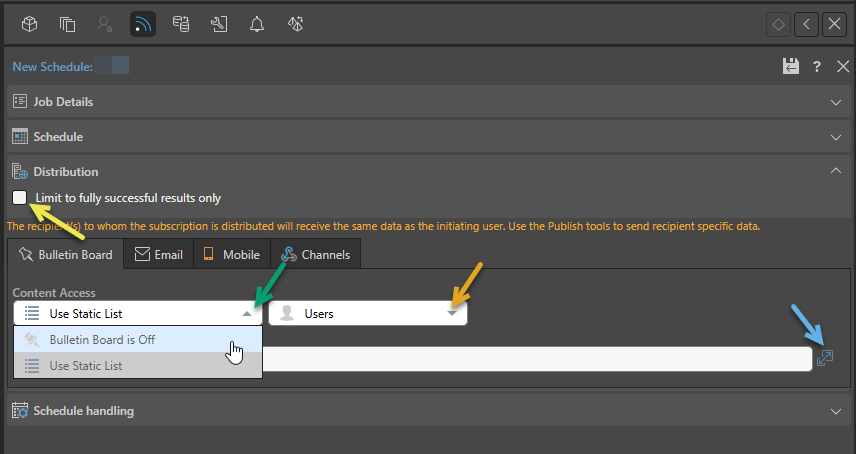
Limit to fully successful results only
Select the Limit to fully successful results only checkbox to prevent automatic distribution where content was not built completely successfully; that is, where a scheduled build "finished with errors" (or is a "Partial Success" in the language of the Task Manager):
- Where this option is not selected (default), the output is built and automatically distributed according to the schedule. The broken item is simply excluded from the output.
- Where this option is selected, the output is built with the missing broken item but it is not automatically distributed. You can still view the built output in the Schedule Manager.
Distribution Mechanism
From the Distribution Mechanism dropdown list (green arrow above):
- Select Bulletin Board is Off if you do not want to distribute the scheduled item to the Bulletin Board.
- Select Use Static List to enable content distribution to the Bulletin Board. With this option selected, you will need to select the Roles or Users to distribute your subscription to.
Tip: Publications can also be distributed to a dynamic list on a scheduled basis using the Bulletin Board. For more information, see Bulletin Board Distribution in Publish Pro.
Target Group
Role Distribution
To distribute to Pyramid user roles, select Roles from the Target Group dropdown list (orange arrow above) and then use the checkboxes to select the role or roles that you want to distribute the scheduled content to. The item will be distributed to all users belonging to the given roles.
User Distribution
To distribute the scheduled content to specific Pyramid users, select Users from the Target Group dropdown list (orange arrow above). You can do one of the following:
- Type the relevant usernames into the username field, separating each name with a semicolon-separated list. Tip: You can resize the username field by dragging the resize handle in the bottom‑right corner (purple arrow).
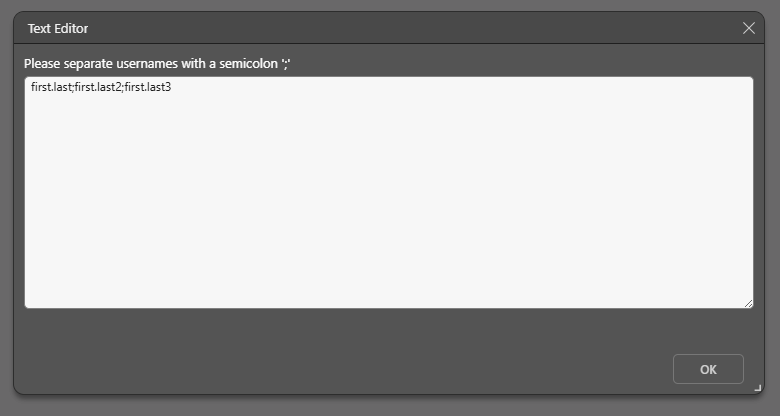
- Click the Expand icon (blue arrow) to open the Text Editor and type the usernames as a semicolon-separated list.
Note: Distributing to users, rather than roles, gives you more control over who will receive the content.
Strict
Where Strict is selected as the subscription mode, users can subscribe to discoveries, presentations, and tabulations on behalf of other users (recipients). The subscription is run as the recipient (the user that the report is being distributed to) with that user's own data security; ensuring that the recipient only ever sees data that is relevant to them. Recipients can only be selected if they are existing Pyramid users in the same tenant as the user creating the subscription. You can also only distribute reports to recipients if those reports are saved to workgroup or public folders, if the data source is a supported type, and if the recipients belong to roles granting access to the item and model.
Important: Where any of the preceding conditions are not met, the Advanced subscription options are not enabled and the user sees the Personal Mode options in the Distribution panel.
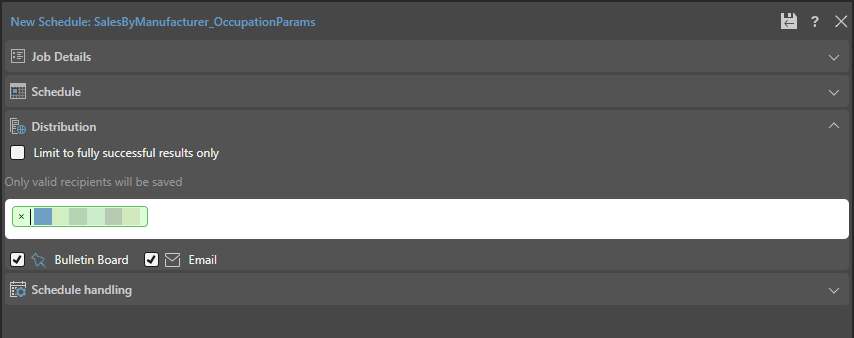
Recipient List and Distribution Target
In the Recipient List, where your own User Name is shown as an "existing user" by default, you can select other users:
-
Type each recipient’s name or email address into the Recipient List.
- Select the target destinations for this subscription:
- Select the Bulletin Board checkbox if you want to send the report to the bulletin board for the selected user or users.
- Select the Email checkbox if you want to distribute the report by email.
These are the target users you want to distribute your report to. Type each email address individually or paste a comma-separated list of addresses using Ctrl+V.
Tip: Type @ and a name, or an email address with an @, to find users from your system. If the user is a valid target for the subscription, their name will be highlighted in green. If they are not, they will be highlighted in red and the subscription will not be distributed to them.
Note: Where Strict mode is in use, subscriptions can only be distributed by Bulletin Board or Email.
Personal Mode
Where Personal Mode is selected as the subscription mode for Pyramid, users cannot subscribe on behalf of other users. They will, therefore, always see the simple Distribution view as follows:
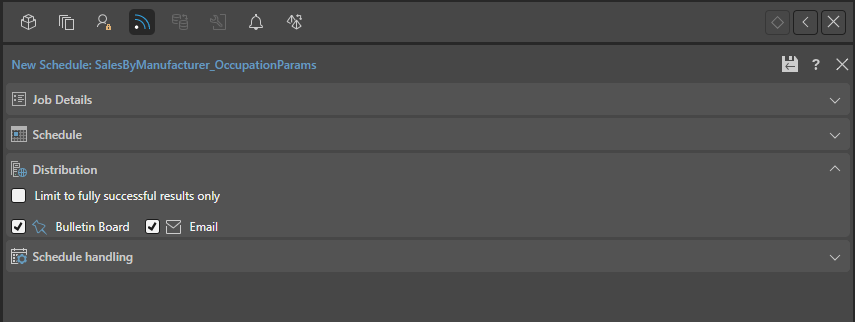
Note: This view is also shown in the following scenarios: 1) where Strict mode is selected but the conditions (described above) aren't met, 2) in the Viewer or Viewer mode, or 3) where the subscription is for a publication.
Basic Distribution Options
Use the checkboxes to subscribe as yourself:
- Bulletin Board: Receive subscribed output through the Pyramid Bulletin Board.
- Email: Receive subscribed output by email.